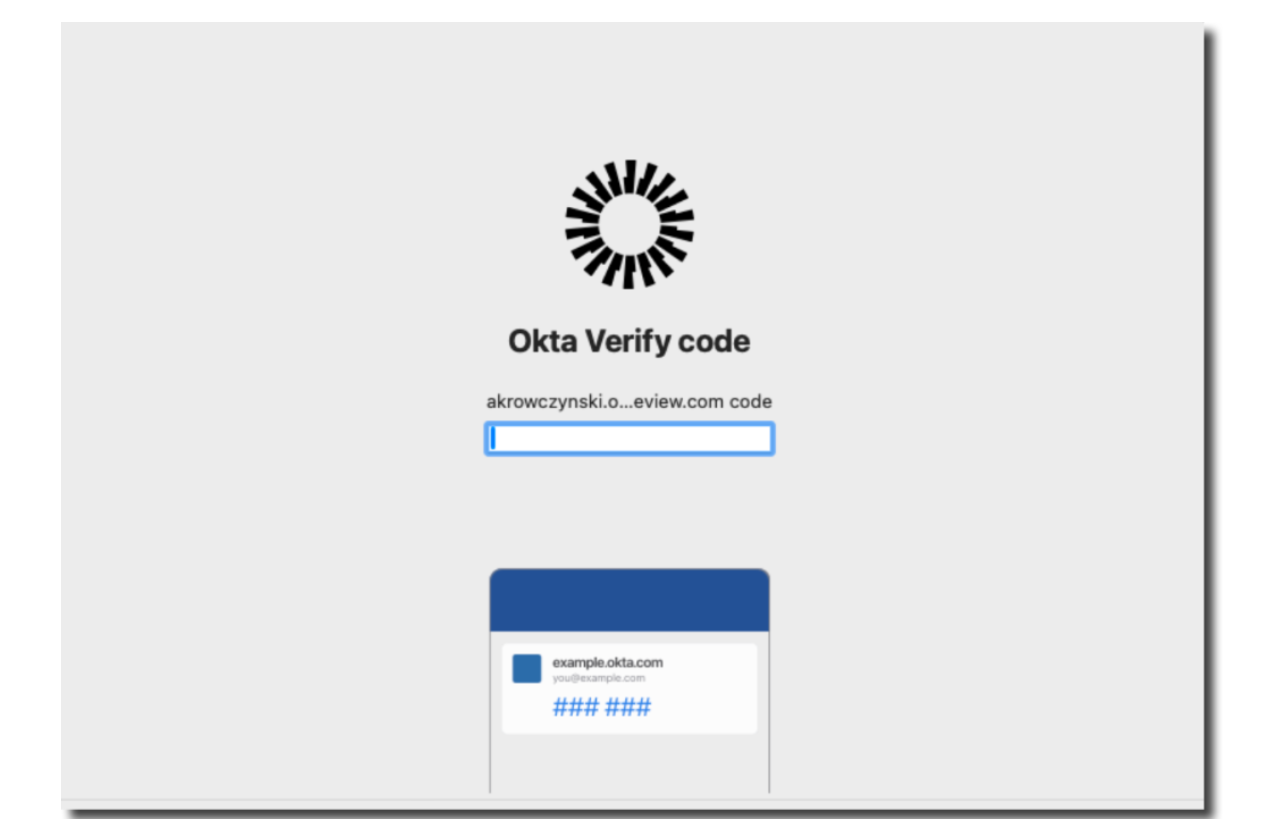
Okta Device Access macOS TOTP account link
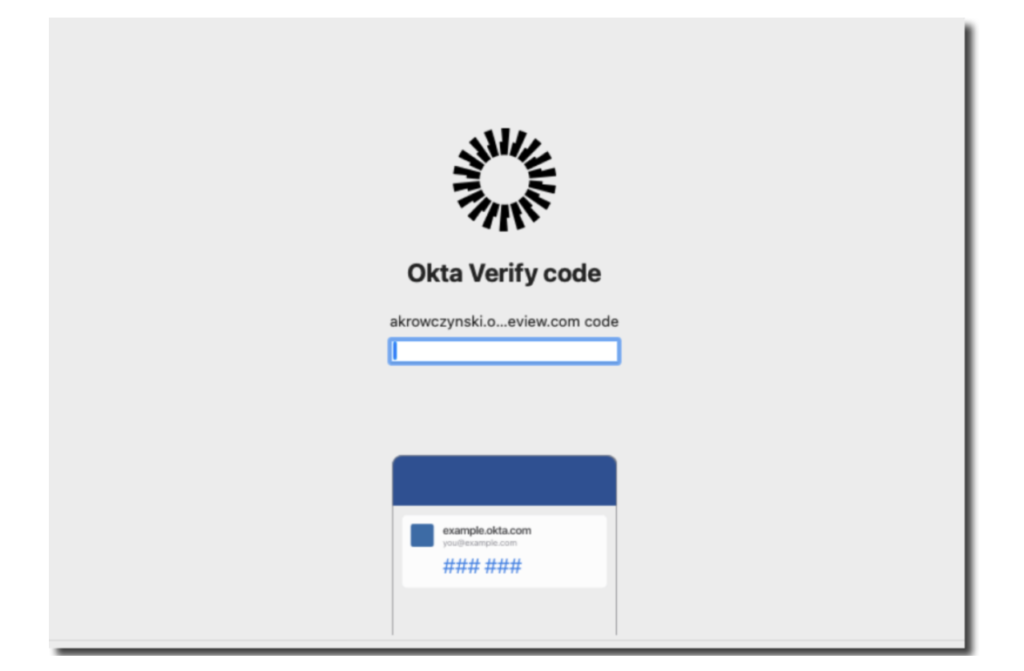
Introduction
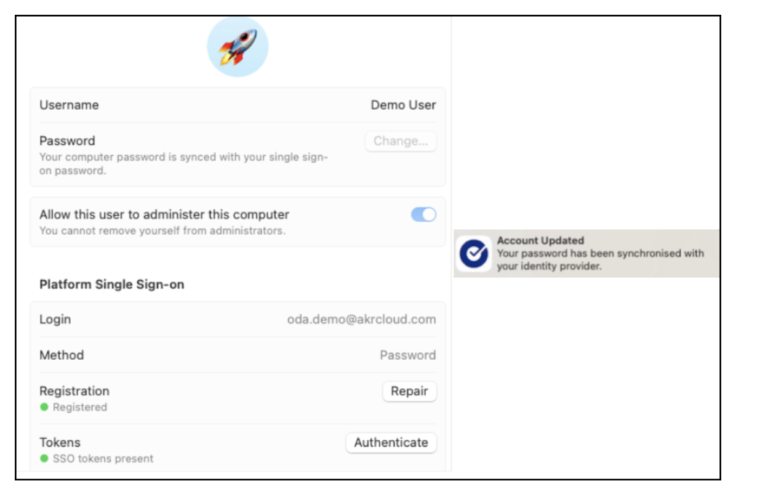
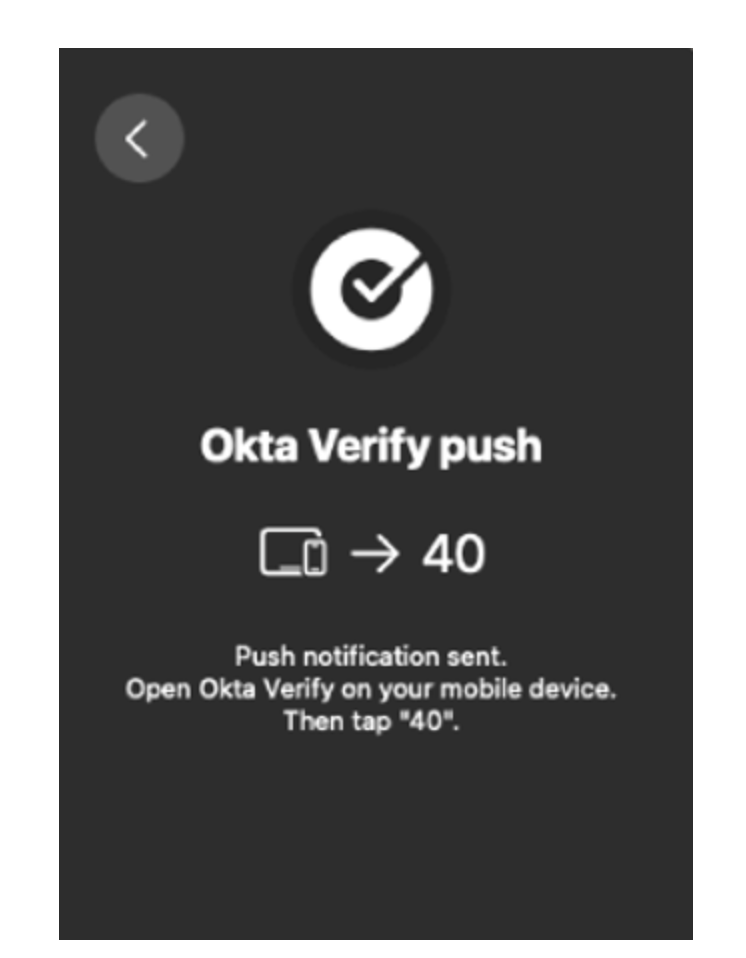
In Desktop MFA for macOS, admins can now choose between Okta Verify push notification and Okta Verify Time-based One-Time Password as the user verification method used to link an Okta account to the local macOS account.
In this blog I will show you how to implement Okta Verify Time-based One-Time Password as the user verification method to link an Okta account to the local macOS account.
Prerequisites
Before you start ensure that you meet these requirements:
- Your Okta Identity Engine org is available.
- Okta Desktop MFA is configured:
– If you are using Jamf Pro take a look at this blog post
– If you are using Kandji take a look at this blog post
– If you are using Microsoft Intune take a look at this blog post - Okta Verify 9.21 deployed to your macOS devices
Create / Adjust MDM Profiles
The configuration is very simpl, you just need to add the desired verification method in your Desktop MFA policy.
Available options are OV_Push (Okta Verify push notification)
<key>AccountLinkingMFAFactor</key>
<string>OV_Push</string>
and
OV_TOTP(Okta Verify Time-based One-Time Password).
<key>AccountLinkingMFAFactor</key>
<string>OV_TOTP</string>
Now let’s have a quick look how the DMFA profile should look like in different Mobile Device Management solutions.
Workspace ONE UEM Profile
In your Workspace ONE UEM console, navigate to the Desktop MFA profile and add the following values.
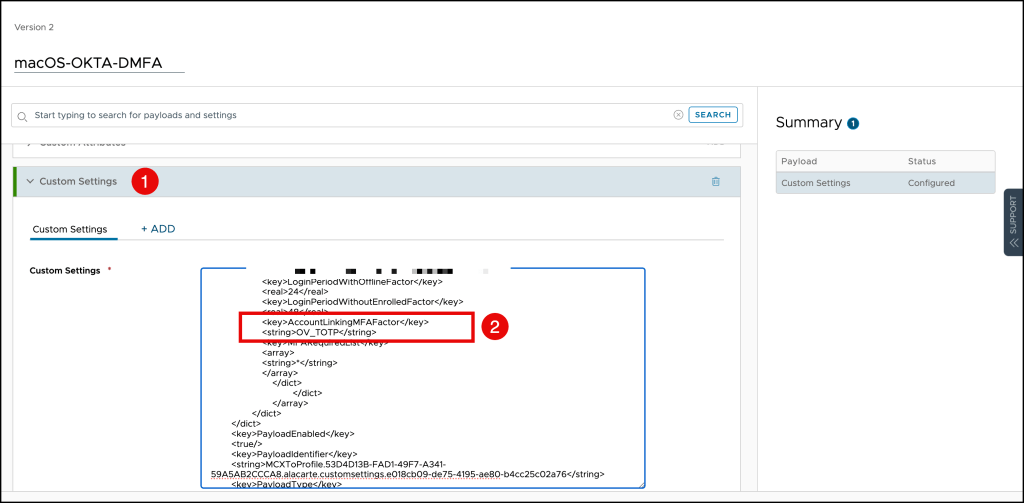
You can use this template to create your custom profile, but please update the following values
- YOUR_CLIENT_ID
- YOUR_CLIENT_SECRET
- YOUR_OKTA_URL
<dict>
	<key>PayloadContent</key>
	<dict>
		<key>com.okta.deviceaccess.servicedaemon</key>
		<dict>
			<key>Forced</key>
			<array>
				<dict>
					<key>mcx_preference_settings</key>
					<dict>
					<key>DMFAClientID</key>
                    <string>YOUR_CLIENT_ID</string>
                    <key>DMFAClientSecret</key>
                    <string>YOUR_CLIENT_SECRET</string>
                    <key>DMFAOrgURL</key>
                    <string>YOUR_OKTA_URL</string>
                    <key>LoginPeriodWithOfflineFactor</key>
                    <real>168</real>
                    <key>LoginPeriodWithoutEnrolledFactor</key>
                    <real>48</real>
                    <key>AccountLinkingMFAFactor</key>
                    <string>OV_TOTP</string>
                    <key>MFARequiredList</key>
                    <array>
                    <string>*</string>
                    </array>
	                </dict>
				</dict>
			</array>
		</dict>
	</dict>
	<key>PayloadEnabled</key>
	<true/>
	<key>PayloadIdentifier</key>
	<string>MCXToProfile.53D4D13B-FAD1-49F7-A341-59A5AB2CCCA8.alacarte.customsettings.e018cb09-de75-4195-ae80-b4cc25c02a76</string>
	<key>PayloadType</key>
	<string>com.apple.ManagedClient.preferences</string>
	<key>PayloadUUID</key>
	<string>53D4D13B-FAD1-49F7-A341-59A5AB2CCCA8</string>
</dict>
Jamf PRO Profile
In your Jamf Pro console, navigate to the Desktop MFA profile and add the following values.
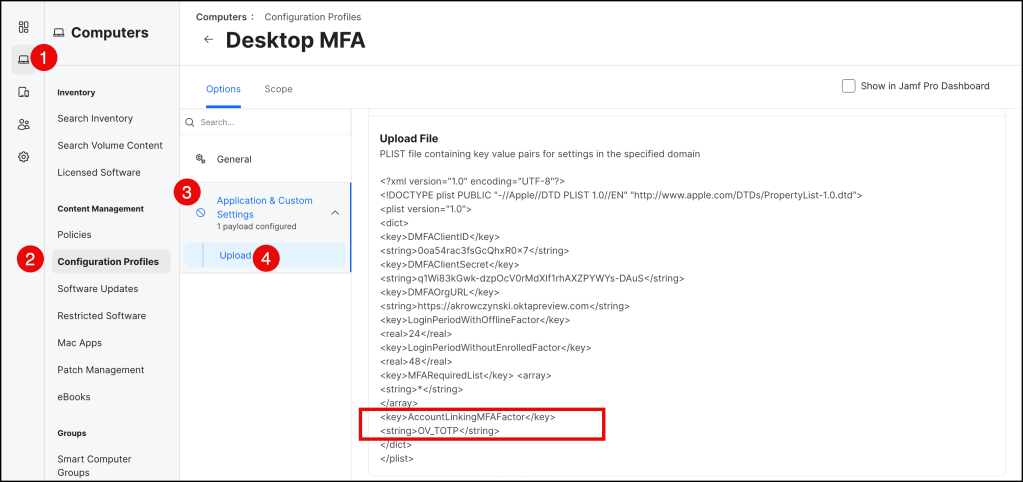
You can use this template, but please update the following values
- YOUR_CLIENT_ID
- YOUR_CLIENT_SECRET
- YOUR_OKTA_URL
<?xml version="1.0" encoding="UTF-8"?>
<!DOCTYPE plist PUBLIC "-//Apple//DTD PLIST 1.0//EN" "http://www.apple.com/DTDs/PropertyList-1.0.dtd">
<plist version="1.0">
<dict>
<key>DMFAClientID</key>
<string>YOUR_CLIENT_SECRET</string>
<key>DMFAClientSecret</key>
<string>YOUR_CLIENT_SECRET</string>
<key>DMFAOrgURL</key>
<string>YOUR_OKTA_URL</string>
<key>LoginPeriodWithOfflineFactor</key>
<real>24</real>
<key>LoginPeriodWithoutEnrolledFactor</key>
<real>48</real>
<key>MFARequiredList</key> <array>
<string>*</string>
</array>
<key>AccountLinkingMFAFactor</key>
<string>OV_TOTP</string>
</dict>
</plist>
Kandji Profile
In your Kandji console, navigate to the Desktop MFA Library and add the following values.
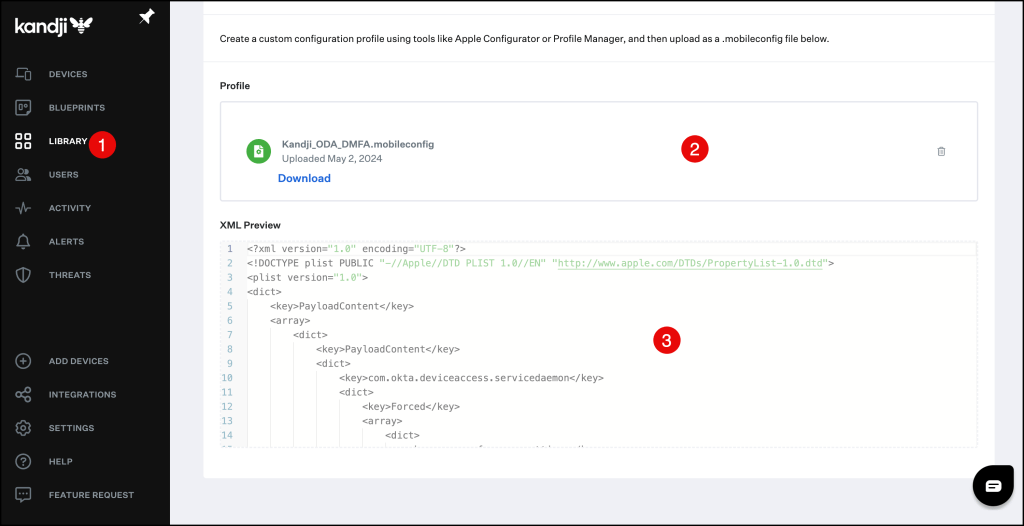
You can use this template to create your mobileconfig file, but please update the following values
- YOUR_CLIENT_ID
- YOUR_CLIENT_SECRET
- YOUR_OKTA_URL
<?xml version="1.0" encoding="UTF-8"?>
<!DOCTYPE plist PUBLIC "-//Apple//DTD PLIST 1.0//EN" "http://www.apple.com/DTDs/PropertyList-1.0.dtd">
<plist version="1">
    <dict>
        <key>PayloadUUID</key>
        <string>2F0FC0DC-953A-4247-A4E6-F64A0A3FA2DB</string>
        <key>PayloadType</key>
        <string>Configuration</string>
        <key>PayloadOrganization</key>
        <string>beste</string>
        <key>PayloadIdentifier</key>
        <string>2F0FC0DC-953A-4247-A4E6-F64A0A3FA2DB</string>
        <key>PayloadDisplayName</key>
        <string>kandji payload</string>
        <key>PayloadDescription</key>
        <string/>
        <key>PayloadVersion</key>
        <integer>1</integer>
        <key>PayloadEnabled</key>
        <true/>
        <key>PayloadRemovalDisallowed</key>
        <true/>
        <key>PayloadScope</key>
        <string>System</string>
        <key>PayloadContent</key>
        <array>
            <dict>
                <key>PayloadDisplayName</key>
                <string>Custom Settings</string>
                <key>PayloadIdentifier</key>
                <string>3472DF62-D492-4211-9D59-748B2107CDE9</string>
                <key>PayloadOrganization</key>
                <string>Kandju Software</string>
                <key>PayloadType</key>
                <string>com.apple.ManagedClient.preferences</string>
                <key>PayloadUUID</key>
                <string>3472DF62-D492-4211-9D59-748B2107CDE9</string>
                <key>PayloadVersion</key>
                <integer>1</integer>
                <key>PayloadContent</key>
                <dict>
                    <key>com.okta.deviceaccess.servicedaemon</key>
                    <dict>
                        <key>Forced</key>
                        <array>
                            <dict>
                                <key>mcx_preference_settings</key>
                                <dict>
                                    <key>DMFAClientID</key>
                                    <string>YOUR_CLIENT_ID</string>
                                    <key>DMFAClientSecret</key>
                                    <string>YOUR_CLIENT_SECRET</string>
                                    <key>DMFAOrgURL</key>
                                    <string>YOUR_OKTA_URL</string>
                                    <key>LoginPeriodWithOfflineFactor</key>
                                    <real>24.0</real>
                                    <key>LoginPeriodWithoutEnrolledFactor</key>
                                    <real>48.0</real>
                                    <key>AccountLinkingMFAFactor</key>
                                    <string>OV_TOTP</string>
                                    <key>MFARequiredList</key>
                                    <array>
                                        <string>*</string>
                                    </array>
                                </dict>
                            </dict>
                        </array>
                    </dict>
                </dict>
            </dict>
        </array>
    </dict>
</plist>
Microsoft Intune Profile
In your Microsoft Intune console, navigate to the Desktop MFA profile and add the following values.
- YOUR_CLIENT_ID
- YOUR_CLIENT_SECRET
- YOUR_OKTA_URL
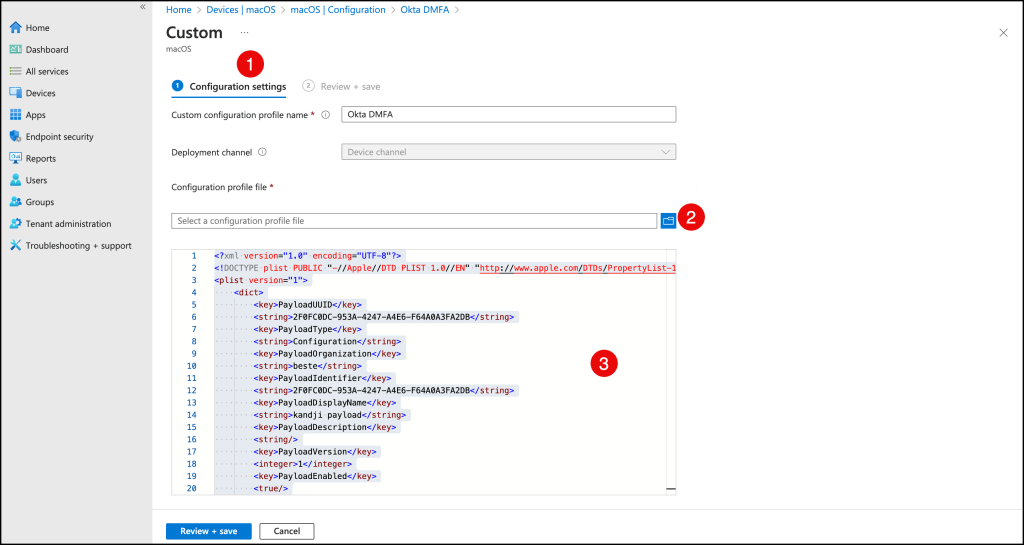
You can use this template to create your custom profile, but please update the following values
<?xml version="1.0" encoding="UTF-8"?>
<!DOCTYPE plist PUBLIC "-//Apple//DTD PLIST 1.0//EN" "http://www.apple.com/DTDs/PropertyList-1.0.dtd">
<plist version="1">
    <dict>
        <key>PayloadUUID</key>
        <string>2F0FC0DC-953A-4247-A4E6-F64A0A3FA2DB</string>
        <key>PayloadType</key>
        <string>Configuration</string>
        <key>PayloadOrganization</key>
        <string>beste</string>
        <key>PayloadIdentifier</key>
        <string>2F0FC0DC-953A-4247-A4E6-F64A0A3FA2DB</string>
        <key>PayloadDisplayName</key>
        <string>kandji payload</string>
        <key>PayloadDescription</key>
        <string/>
        <key>PayloadVersion</key>
        <integer>1</integer>
        <key>PayloadEnabled</key>
        <true/>
        <key>PayloadRemovalDisallowed</key>
        <true/>
        <key>PayloadScope</key>
        <string>System</string>
        <key>PayloadContent</key>
        <array>
            <dict>
                <key>PayloadDisplayName</key>
                <string>Custom Settings</string>
                <key>PayloadIdentifier</key>
                <string>3472DF62-D492-4211-9D59-748B2107CDE9</string>
                <key>PayloadOrganization</key>
                <string>JAMF Software</string>
                <key>PayloadType</key>
                <string>com.apple.ManagedClient.preferences</string>
                <key>PayloadUUID</key>
                <string>3472DF62-D492-4211-9D59-748B2107CDE9</string>
                <key>PayloadVersion</key>
                <integer>1</integer>
                <key>PayloadContent</key>
                <dict>
                    <key>com.okta.deviceaccess.servicedaemon</key>
                    <dict>
                        <key>Forced</key>
                        <array>
                            <dict>
                                <key>mcx_preference_settings</key>
                                <dict>
                                    <key>DMFAClientID</key>
                                    <string>YOUR_CLIENT_ID</string>
                                    <key>DMFAClientSecret</key>
                                    <string>YOUR_CLIENT_SECRET</string>
                                    <key>DMFAOrgURL</key>
                                    <string>YOUR_OKTA_URL</string>
                                    <key>LoginPeriodWithOfflineFactor</key>
                                    <real>24.0</real>
                                    <key>LoginPeriodWithoutEnrolledFactor</key>
                                    <real>48.0</real>
                                   <key>AccountLinkingMFAFactor</key>
                                   <string>OV_TOTP</string>
                                    <key>MFARequiredList</key>
                                    <array>
                                        <string>*</string>
                                    </array>
                                </dict>
                            </dict>
                        </array>
                    </dict>
                </dict>
            </dict>
        </array>
    </dict>
</plist>