

Okta and VMware Horizon True SSO

Introduction
This blogs covers a basic guide how to configure Okta and VMware Horizon to provide an end-to-end single sign on experience to the end-user .
We need to have TrueSSO configured on our Horizon environment as this enable users are not required to also enter Active Directory credentials in order to use a remote desktop or applications.
Prerequisites
- Okta Tenant with SAML Application configured
- Okta Agent configured for Active Directory Integration
- VMware Horizon Connection Server configured with a least one desktop pool.
In this blog I am using an ON-Prem VMware Horizon environment. - VMware Unified Access Gateway with Horizon edge service configured
- VMware Horizon Enrollment Server (TrueSSO) installed and configured
- VMware Horizon Client on Windows, macOS machine or Thin Client installed
- Okta Authentication Policy configured to access the VMware Horizon environment.
In my demo I am using Okta Verify as the authenticator in my
Authentication Policy.
Configuring SAML Integration with Okta
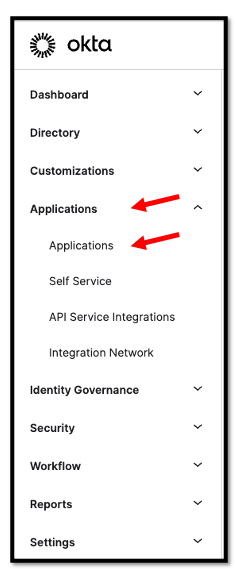
In the Okta Admin Console navigate to Applications –> Applications
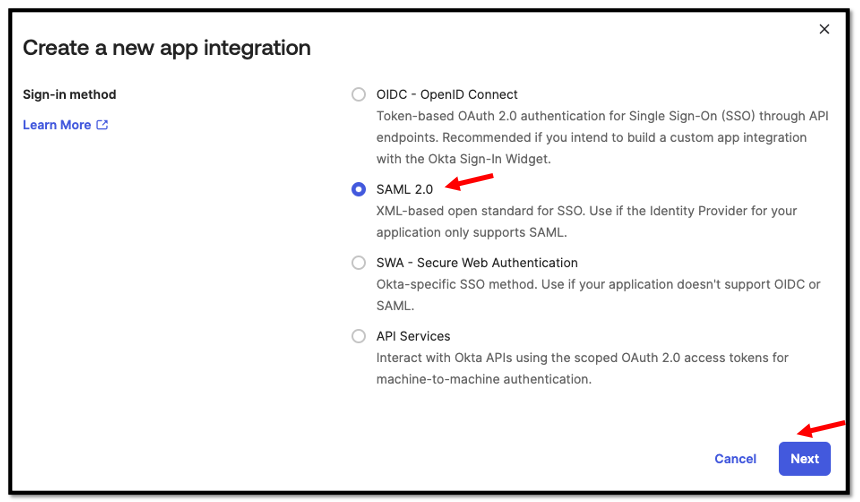
Create a new App Integration

Select SAML 2.0 and press Next
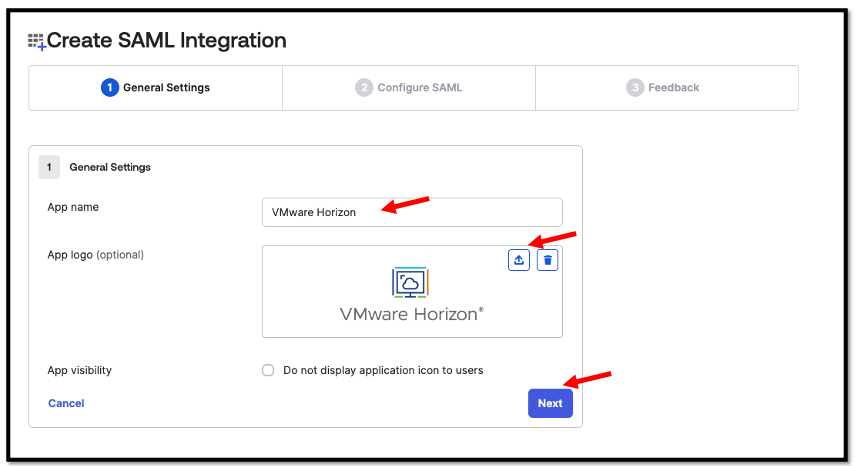
Enter your App name as the App name, upload an App Logo(optional) and Click Next
No we need to configure the SAML Settings.
Here we need to replace <YOUR-UAG_FQDN> with the respective FQDN from
your environment.
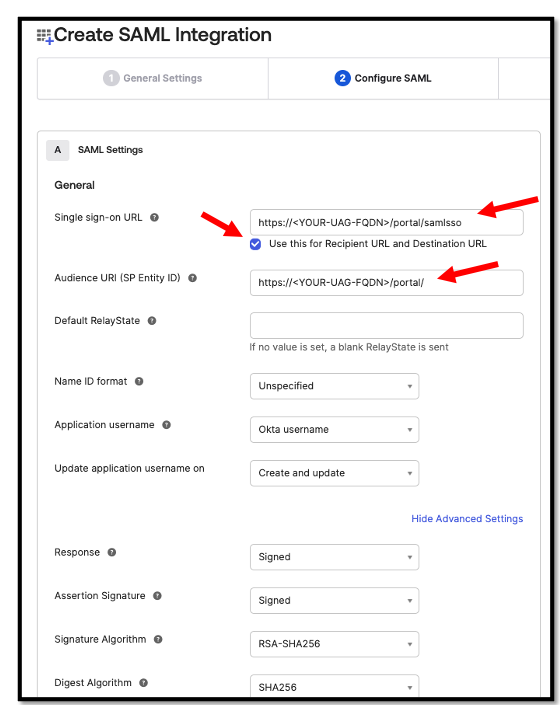
Complete your settings and Click Finish.
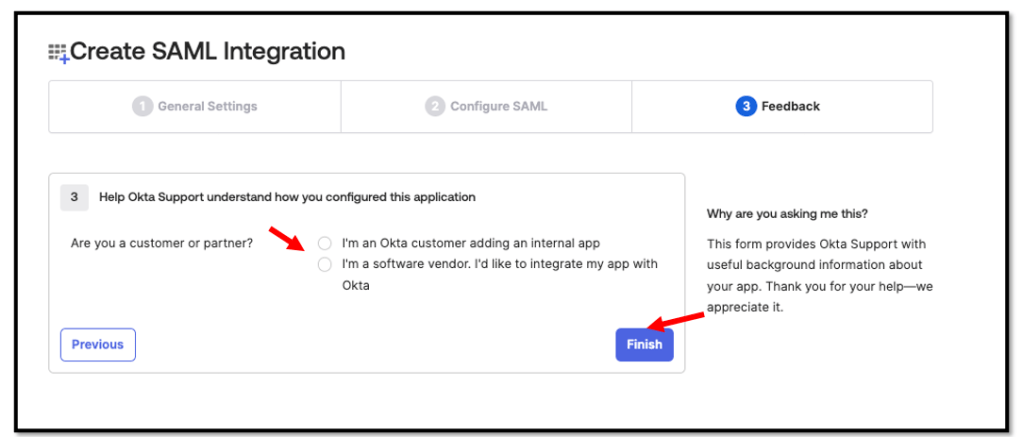
After we’ve configured the General Settings, we now need to download the Identity Provider metadata.
This one will be uploaded to the VMware Unified Access Gateway and the
Horizon Connection Server.
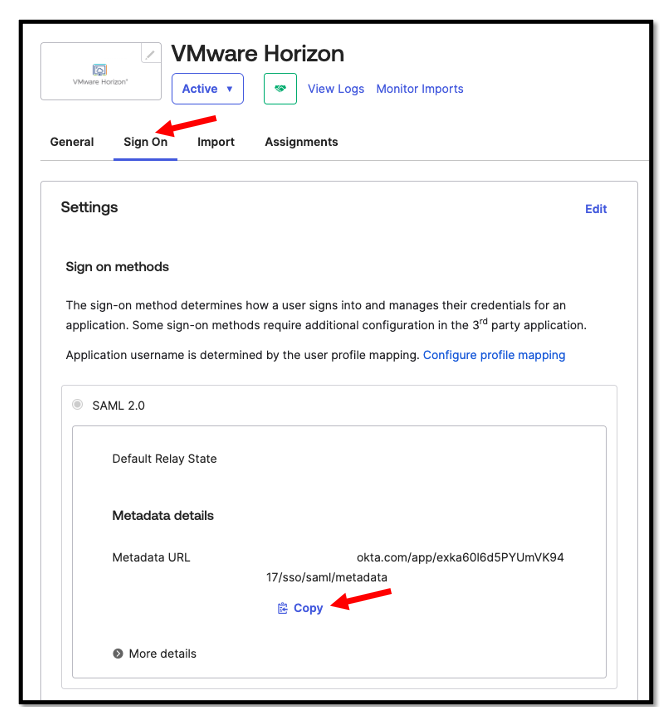
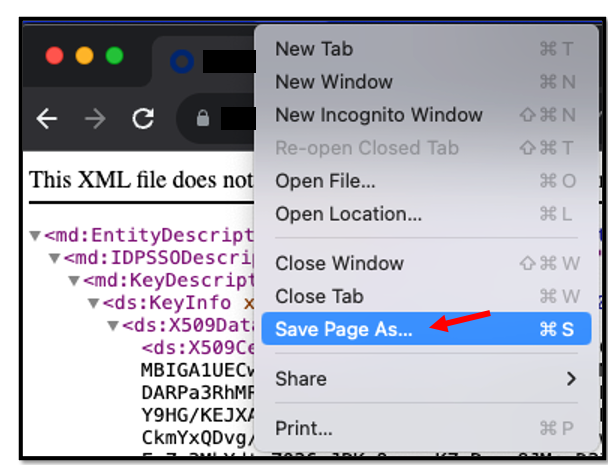
Navigate to the Sign On page, scroll down to the SAML 2.0 section, copy the Metadata URL and open a new browser window.
In the Browser Window Click Save Page As
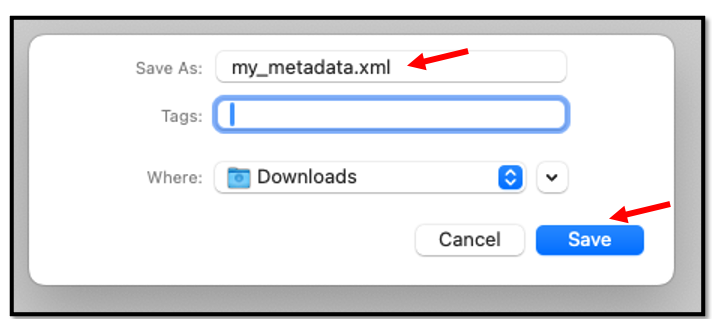
and save your file.
Assign Users to the Horizon application
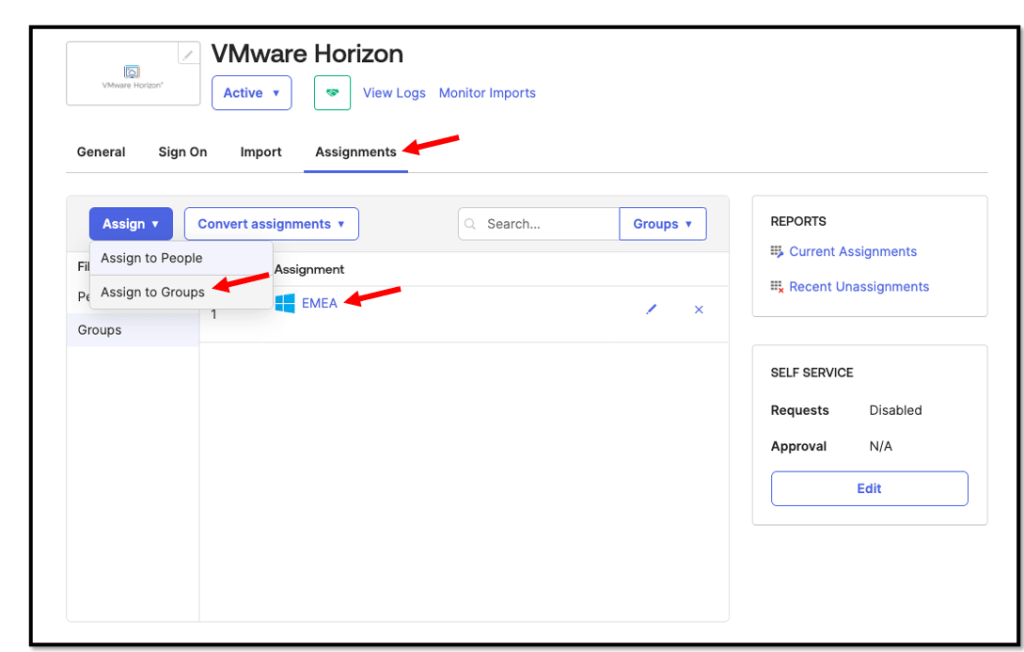
Go to Assignments tab and select Assign > Assign to Groups and assign your
Active Directory Group to the Application.
Configuring Unified Access Gateway Integration with Okta
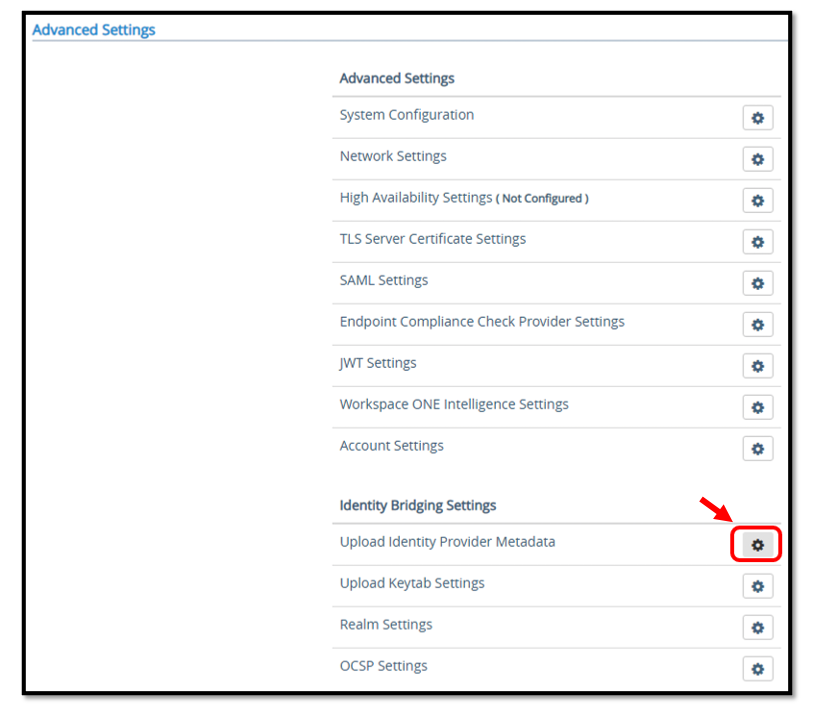
Login to the VMware Unified Access Gateway by entering the correct credentials and navigate to the Identity Bridging Settings. Press the gear button next to
Upload Identity Provider Metadata.
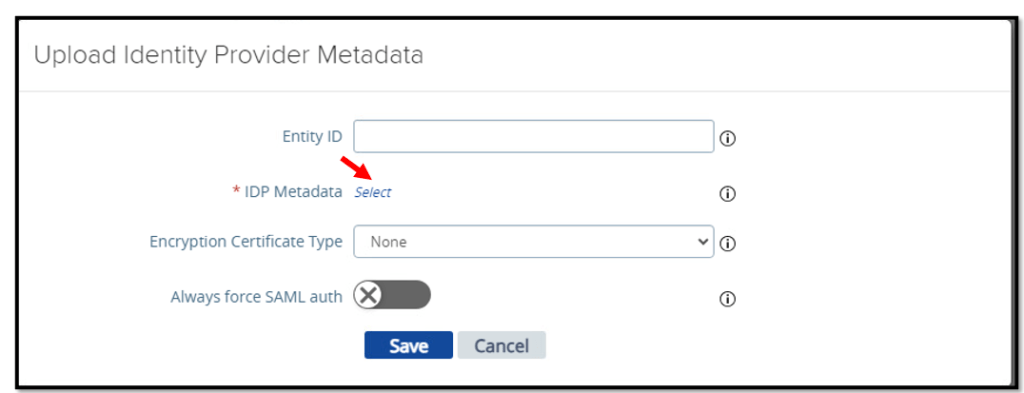
Upload the Okta Metadata that you’ve downloaded from the Okta Application in the
previos section.

Save your settings on the Unified Access Gateway.

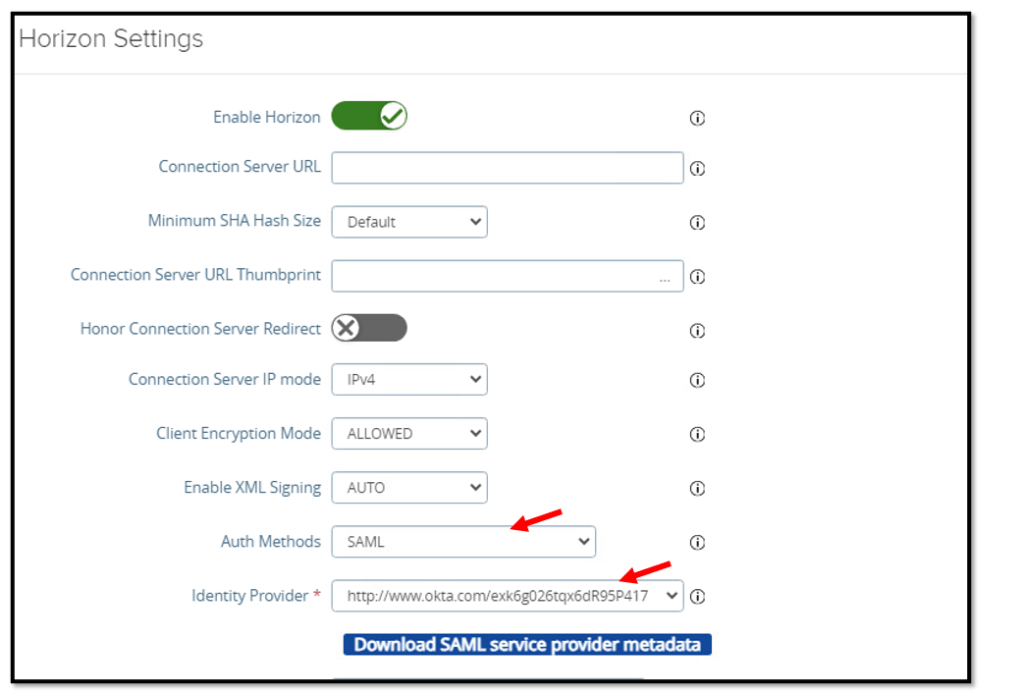
Now its’s time to configure SAML as the authentication method for the Horizon service on Unified Access Gateway.
In this Blogs I am using SAML as the authentication method as my environment has VMware Horizon True SSO enabled.
When Auth Methods is set to SAML, SAML assertion is validated by Unified Access Gateway and passed to the backend. User single sign-on leveraging True SSO to the remote desktops and applications.
When Auth Methods is set to SAML + passthrough, SAML assertion is validated by Unified Access Gateway and Connection Server authenticates the user against Active Directory when launching remote desktops and applications.
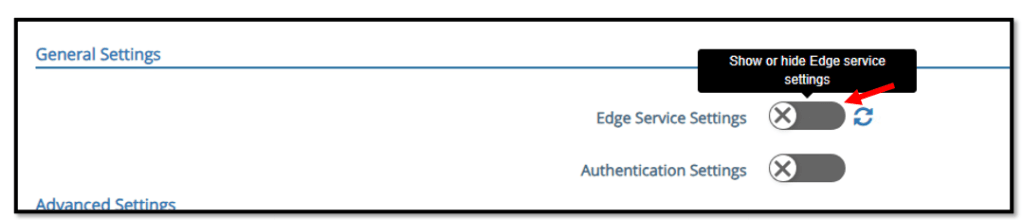
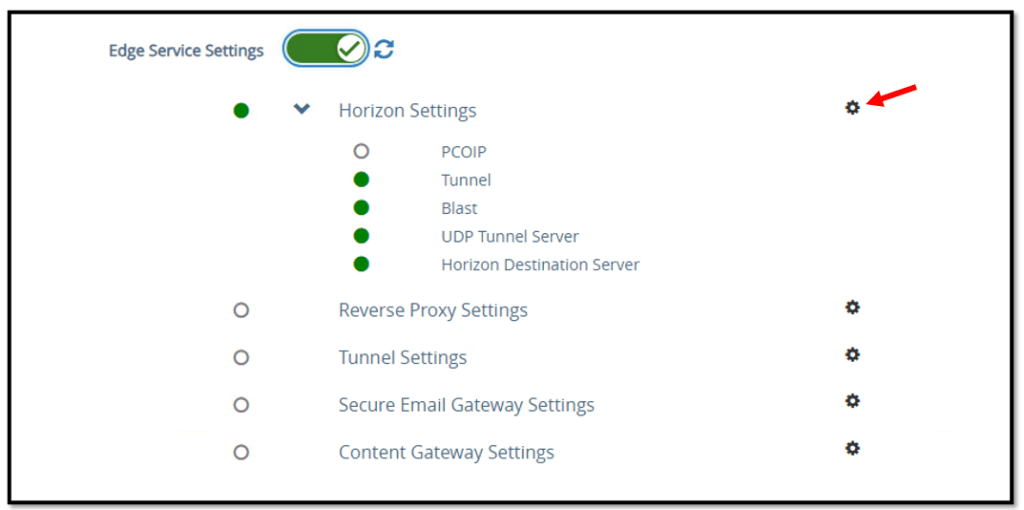
Click the Show toggle next to Edge Service Settings.
After you click, it switches to display the Hide option.
Click the gear icon next to Horizon Settings.
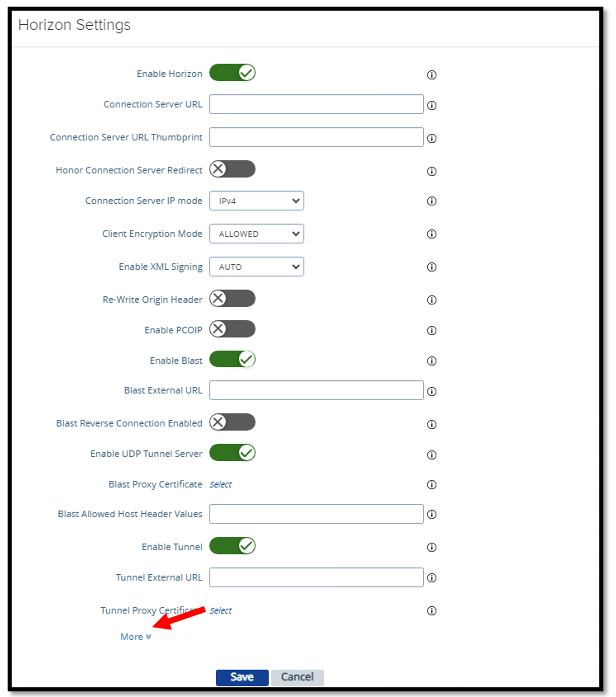
Click More at the bottom of the Horizon settings to the Access Authentication Configuration menu.
Select SAML as your Auth Method, select Okta as your Identity Provider and Save your settings.
Configuring Horizon Integration with Okta for True SSO
To provide an end-to-end single sign on experience to the end-user you must configure TrueSSO on your VMware Horizon environment.
When True SSO is enable users are not required to also enter Active Directory credentials in order to use a remote desktop or applications.
In the next steps we will configure the Horizon Integration with Okta for True SSO.
Log in to the Horizon Administration Console:
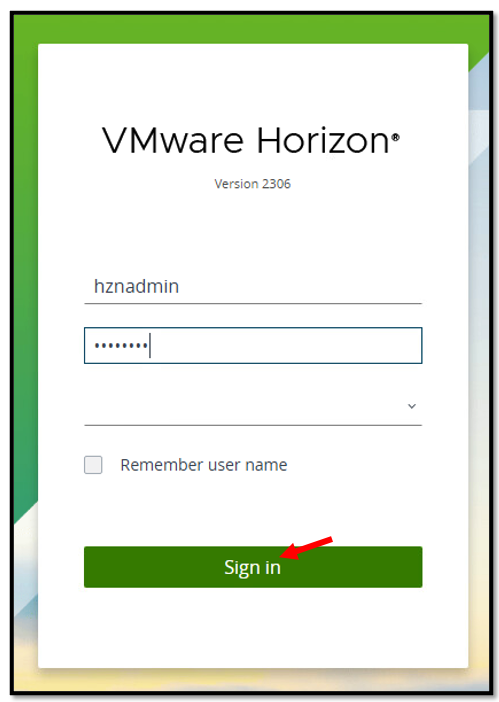
Navigate to Settings, Servers, select the Connection Server and Click Edit.
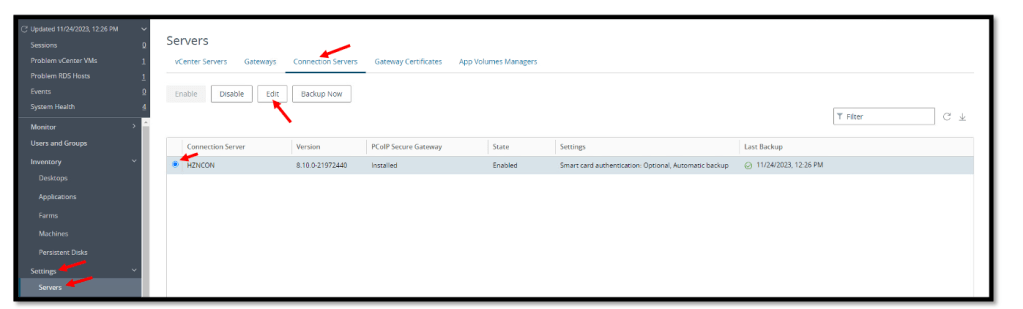
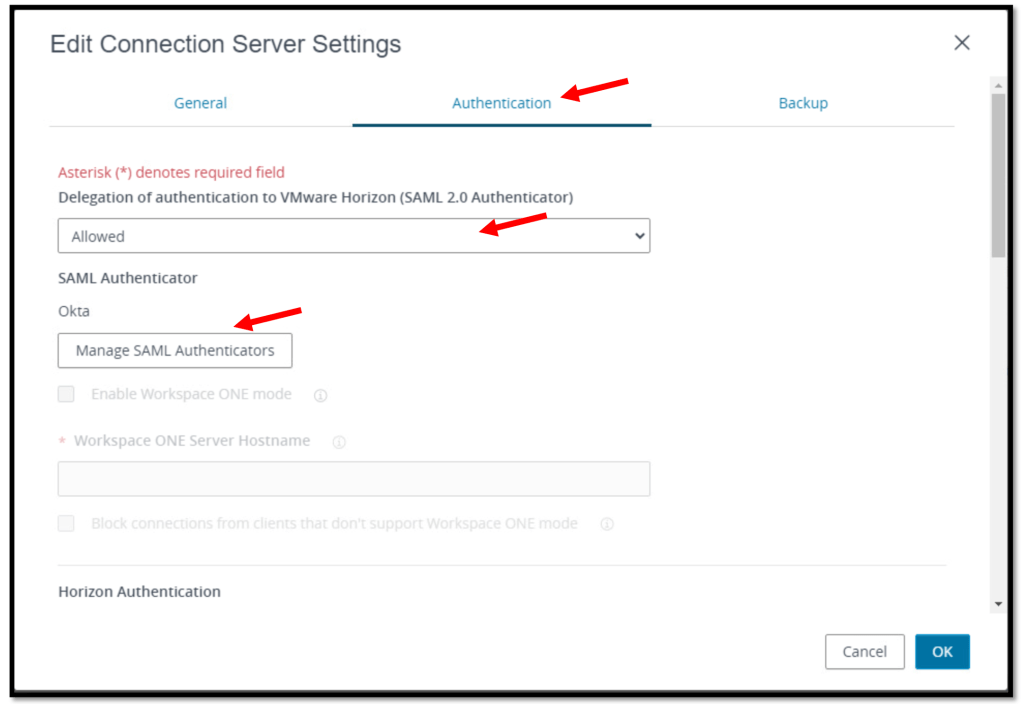
Here we need to set SAML 2.0 Authenticator to Allowed and then click the
Manage SAML Authenticators button.
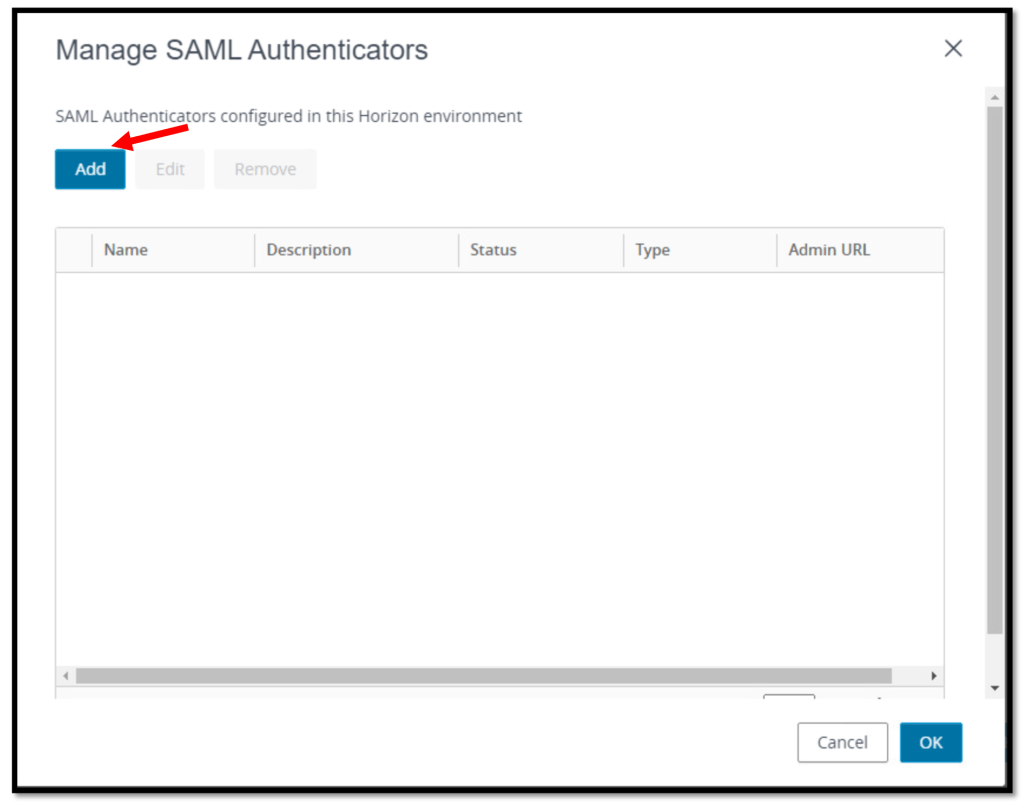
Click the Add button to create a new SAML Authenticator
Give your SAML 2.0 Authenticator a name, in the SAML Metadata field, paste in the contents from the previous section (my_metadata.xml) and enable the Enabled for Connection Server option.

Enable TrueSSO
Since environment leverages Horizon TrueSSO, I have to enable the OKTA
SAML Authenticator on True SSO 🙂
To do so we need to login to the VMware Connection Servers and open a Command Prompt as administrator.

We need to use the following command line to list all the authenticators and their True SSO mode status.
vdmutil --authAs <Horizon admin user> --authDomain <fqdn> --authPassword <Horizon admin password> --truesso --list --authenticatorReplace:<Horizon admin user> with the Horizon administrator user<fqdn> with the fully qualified domain name for the Horizon admin user<Horizon admin password> with the password for the Horizon administrator

If True SSO mode is DISABLED for the authenticator you are trying to configure, execute the following command line to enable.
vdmutil --authAs <Horizon admin user> --authDomain <fqdn> --authPassword <Horizon admin password> --truesso --authenticator --edit --name <SAML authenticator name> --truessoMode ENABLEDAfter you enable True SSO, the True SSO mode for the authenticator you are enabling displays as ENABLE_IF_NO_PASSWORD.
Demo
If everything has been configured correctly, the user experience could look like this.
In my Demo I a using an IGEL Thin Client to access my Horizon environment.
But you can also install the Horizon Client on a Windows or macOS client machine
Cool