Okta FastPass for Windows Virtual Desktop Infrastructure (VDI)
Introduction
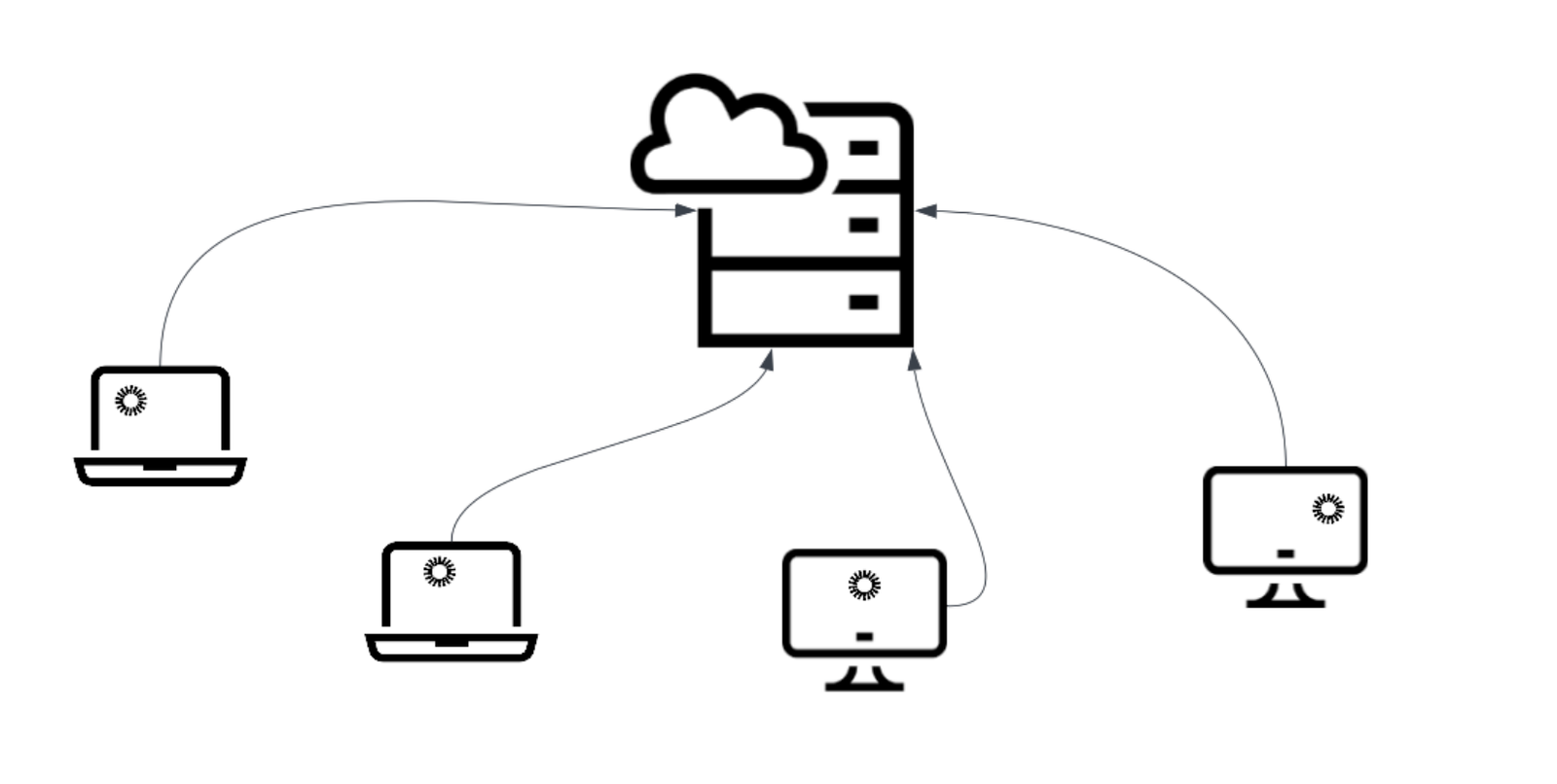
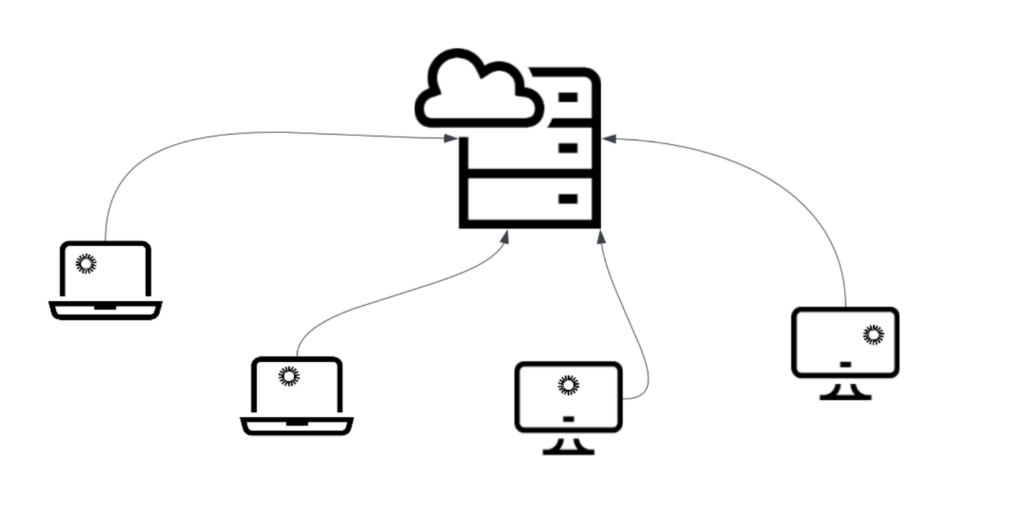
Okta Verify/FastPass and Device Assurance are now going to be supported in
Windows VDI (Virtual Desktop Infrastructure) environments for easy access to resources.
Extend passwordless, phishing resistant authentication with device context to resources in VDI environments (AWS, Citrix, etc.).
With this we can bypassing the need of Windows Hello via the the new Passcode Verification feature.
Requirements
- Okta Identity Engine (OIE)
- Okta Verify version 4.9.0 or higher
- Virtual Desktop Infrastructure or device that is access by Remote Desktop Protocol (RDP)
Okta Verify configurations for Windows devices
You have the ability to alter Okta Verify functionality by utilizing configuration options.
Upon initiating the Okta Verify installer through a command, you’ll be prompted to specify installation options, which include configuration values.
OktaVerifySetup-x.x.x.x-yyyyyyy.exe <option1Name>=<option1Value> <option2Name>=<option2Value>...A complete overview of the configuration can be found here.
If you have e.g. a mobile device management (MDM) solution you can use this to deploy the configurations.
Starting with version 4.9.0, Okta Verify supports deployment on virtual machines for the following Virtual Desktop Infrastructure (VDI) providers:
- Citrix
- Windows 365
- AWS WorkSpace
The choice of value for AuthenticatorOperationMode hinges on the virtual environment where Okta Verify is deployed:
- For static virtual environments, where the user’s sessions consistently utilize the same hardware for each sign-in, opt for VirtualDesktopStatic.
- In layered virtual environments, where session hosting hardware may vary, select VirtualDesktopLayered.
Deploy Okta Verify for virtual Windows environments
In my example I deployed Okta Verify for a virtual VDI environment using the following configuration values.
OktaVerifySetup.exe OrgUrl=https://MY_OKTA_TENANT.oktapreview.com AuthenticatorOperationMode=VirtualDesktopStatic DeviceHealthOptions=HideDiskEncryption EnrollInBetaProgram=TRUE- OrgUrl = org_sign-in_URL
Okta Org URL is included on the user’s enrollment page - AuthenticatorOperationMode = VirtualDesktopStatic
Virtual desktop environment where the user’s session is always hosted by the
same hardware - DeviceHealthOptions = HideDiskEncryption
Hides the disk encryption check - EnrollInBetaProgram = TRUE
Enroll in the Okta Verify beta program on their Windows devices
Here a short demo of the deployment process.
Setup User verification with an Okta Verify passcode
During enrollment, Okta Verify prompts users to create a passcode with at least
eight characters.
The Windows operating system securely stores the passcode, while Okta Verify itself
does not retain or store the user’s passcode.
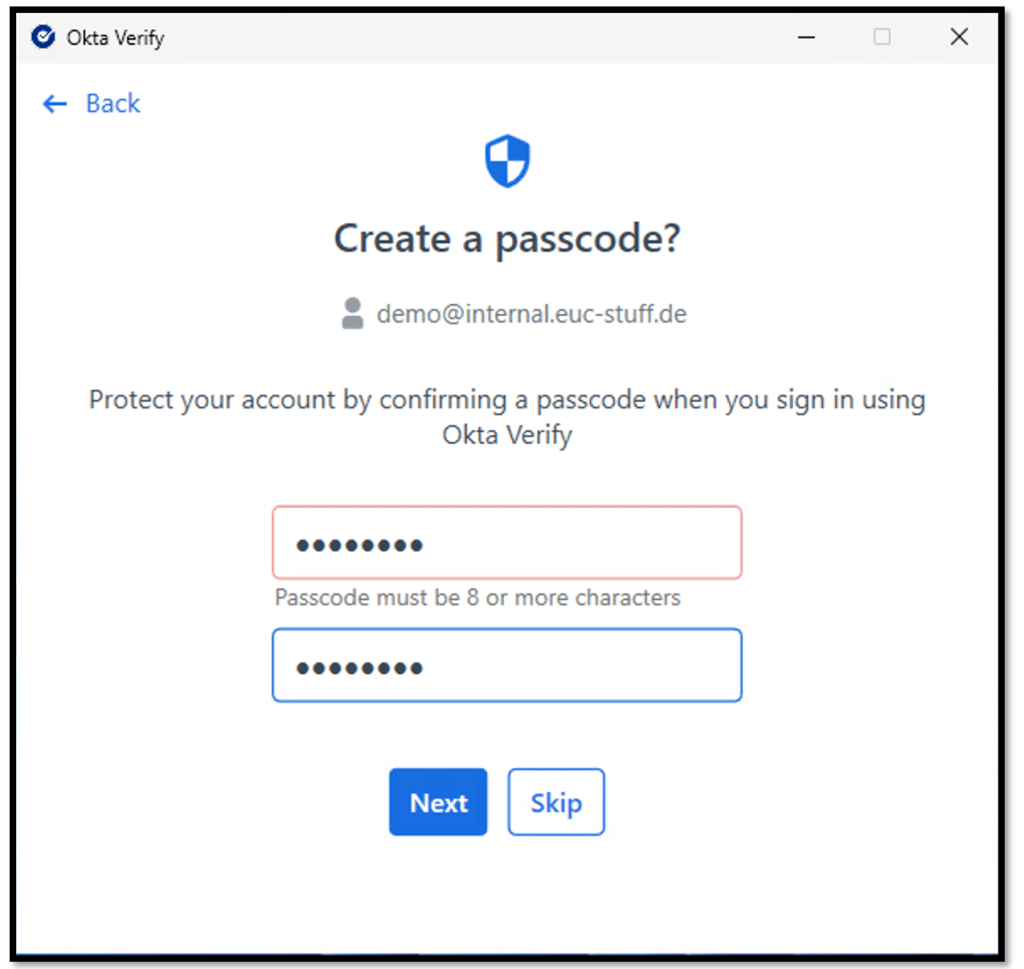
Watch the demo of the enrollment process and you will also see, that the configuration values from the deployment are reflected within the Okta Verify app.
(e.g. DeviceHealthOptions = HideDiskEncryption)
User verification with an Okta Verify passcode
When the Authentication Policy requires two factor types or user verification
Okta Verify prompts users to confirm their identity with the passcode they created during enrollment.
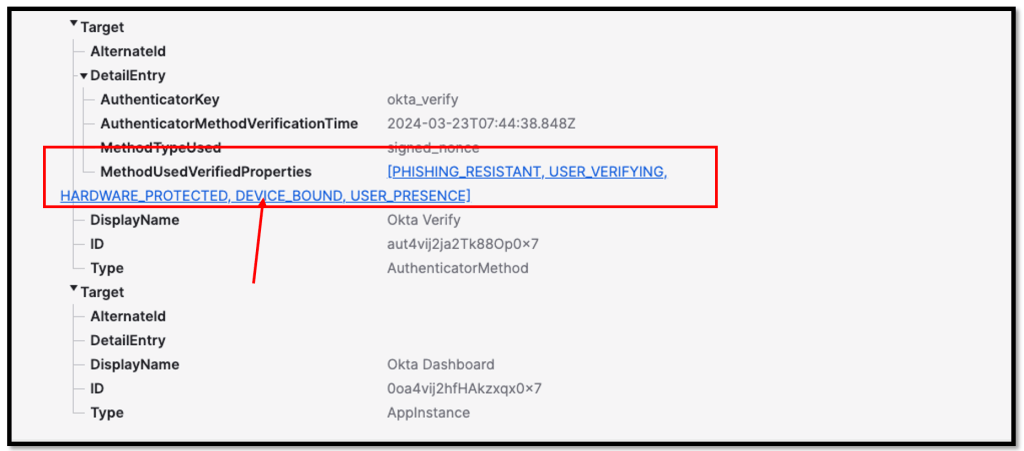
In my example I’ve adjusted the Authentication Policy for the Okta Dashboard you can watch in the next demo.
The login behavior is also reflected in the System Log, see the screenshot below
Good to know
If the device has a Trusted Platform Module (TPM) Okta Verify stores the
passcode-protected user verification key in the TPM.
If the user exceeds the incorrect passcode limit, the TPM ignores further requests from Okta Verify.
In response, the user receives an error message from Okta Verify.

They’re prompted to restart the device to continue to use Okta Verify.
If a user continues to enter incorrect passcodes, the TPM might lock for a fixed period. Restarting the device may no longer allow the user to continue with Okta Verify.