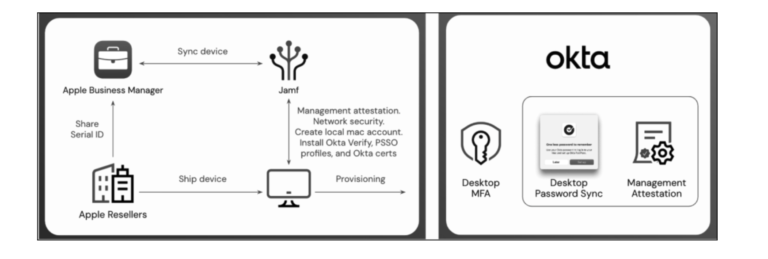
Configure Desktop Password Sync for macOS
Okta PSSO Setup and Integration
In this section, we will cover the initial steps for configuring the Okta PSSO application and establish the necessary SCEP (Simple Certificate Enrollment Protocol) configuration.
Setting Up the Okta PSSO Application
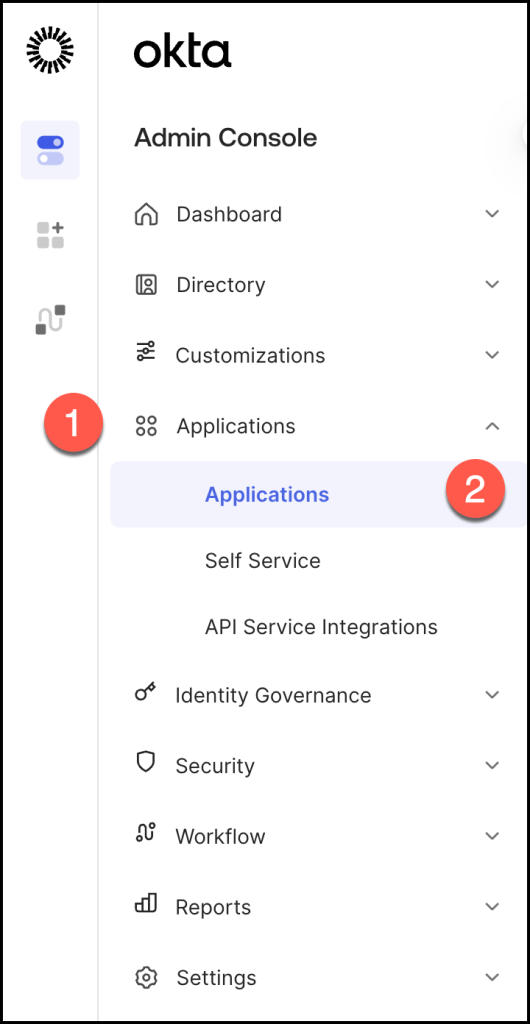
Navigate to Applications > Applications.
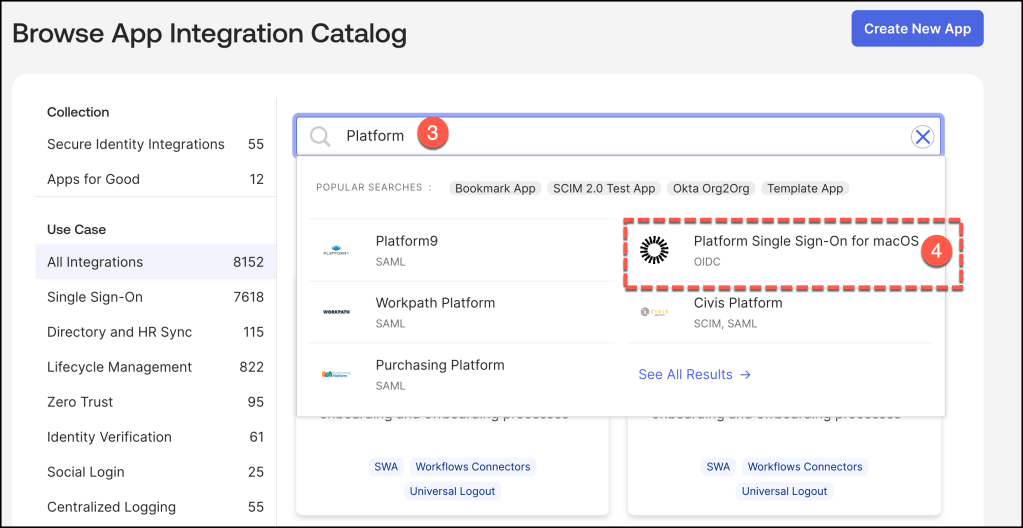
In the application catalog, search for Platform. From the results, select the Platform Single Sign-On for macOSapplication tile to begin the integration process.
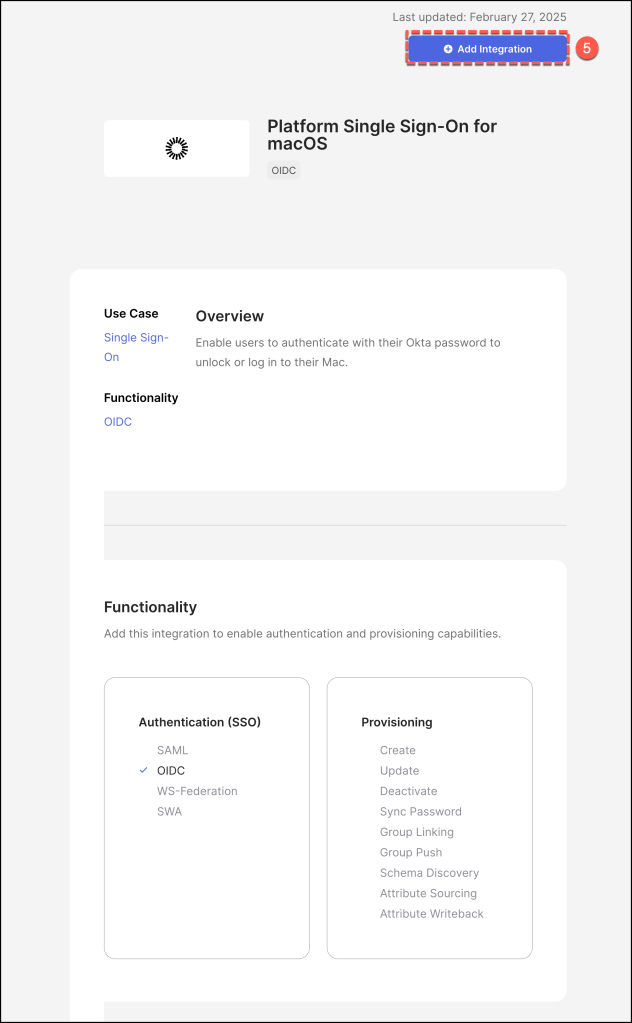
Click Add Integration to instantiate the Platform Single Sign-On for macOS application template within your Okta environment.
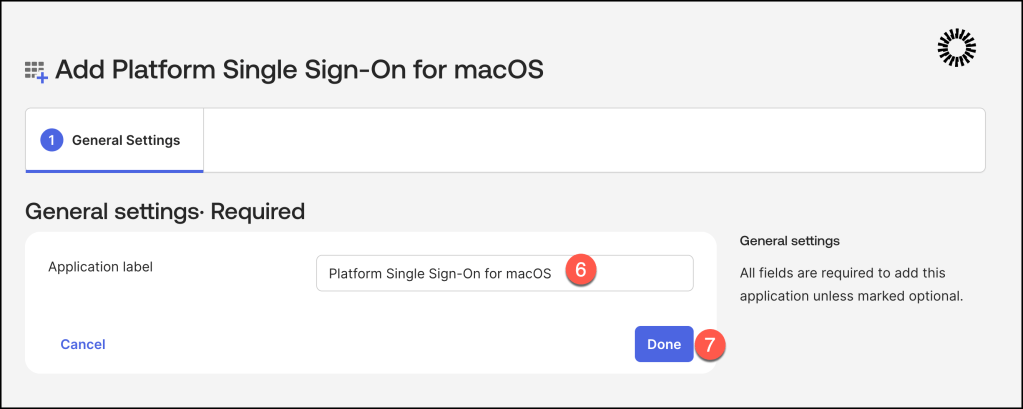
Choose a suitable Application Label and click Done
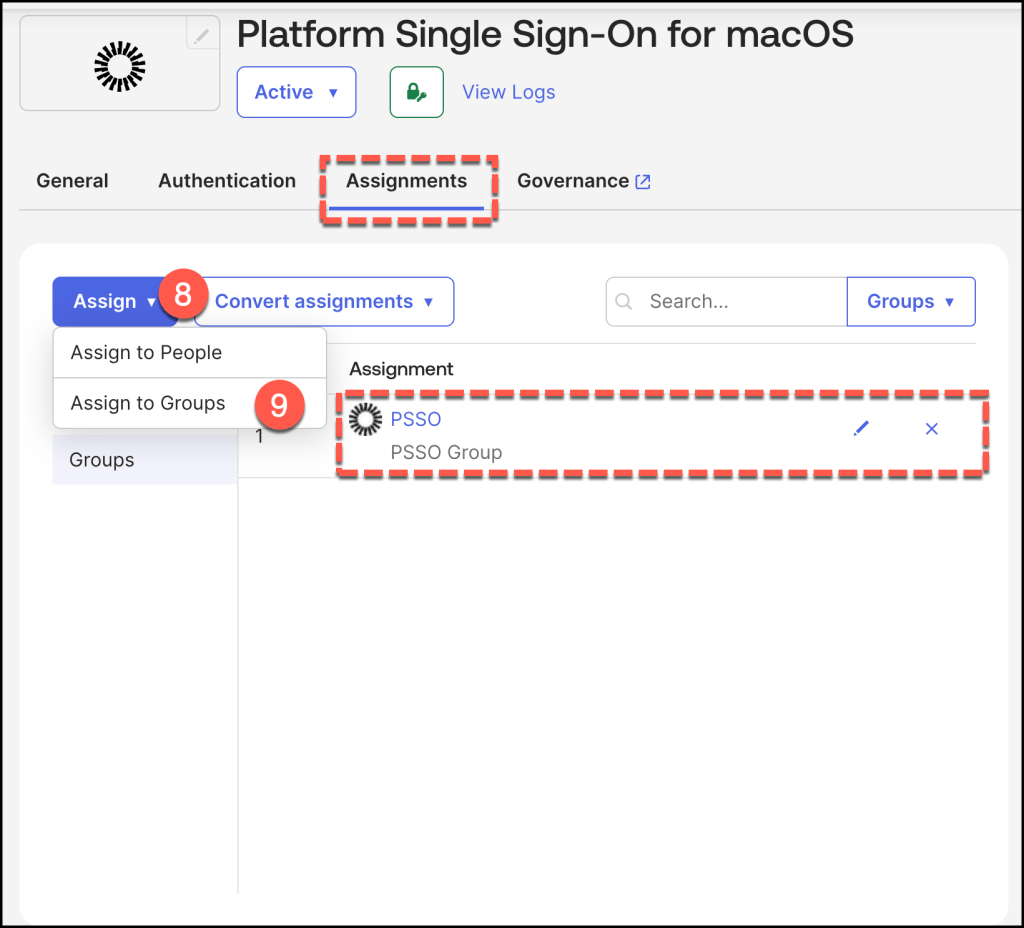
Navigate to the Assignments pane and assign the relevant users or groups to the Platform Single Sign-On for macOSapplication integration.
On the Authentication tab, note the Client ID. This ID is required when creating the managed app configuration in your Jamf environment